
Remove the MDM lock
The phone finishes setup like one bought at a shop: your language, your Wi-Fi, your Apple ID. No company name, no enrollment screen, no admin password.
The setup screen that says “This iPhone is owned by” a school or a company you’ve never dealt with. That’s an MDM lock. It comes off in one run — no admin password, no Apple ID, no jailbreak.


What comes off
Nothing buried in menus. Each job has a button with its own name on it.
The phone finishes setup like one bought at a shop: your language, your Wi-Fi, your Apple ID. No company name, no enrollment screen, no admin password.
The organisation that used to own it can still send a remote wipe from its console. With this on, that command lands and nothing happens.
An overnight update can re-enroll a supervised phone, or push it past 27.2 where this build stops covering you. This pins the version you tested.
The app
Model, iOS build, ECID and serial are read off the phone before anything is touched. Then a log names the step it is on, so a stop is never a mystery.
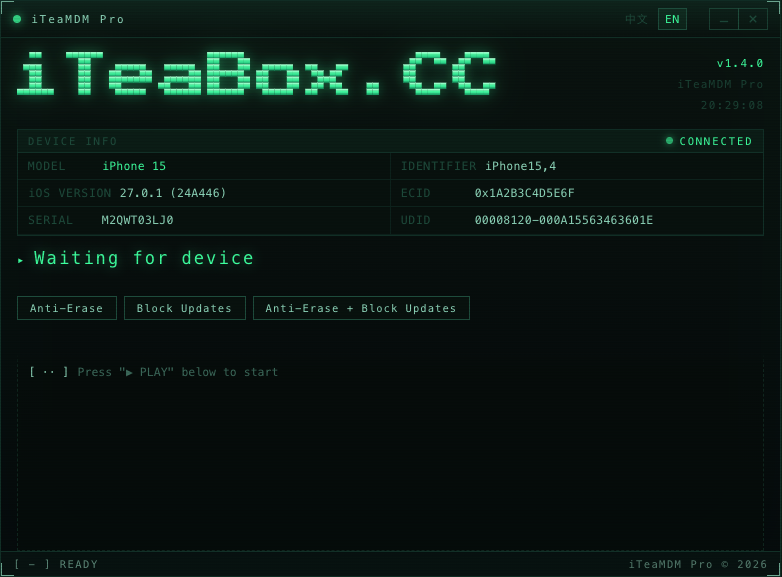
Six fields, read live. If a row is empty, the cable or the driver is the problem, not the phone.
Anti-Erase. Block Updates. Both. No menus to dig through.
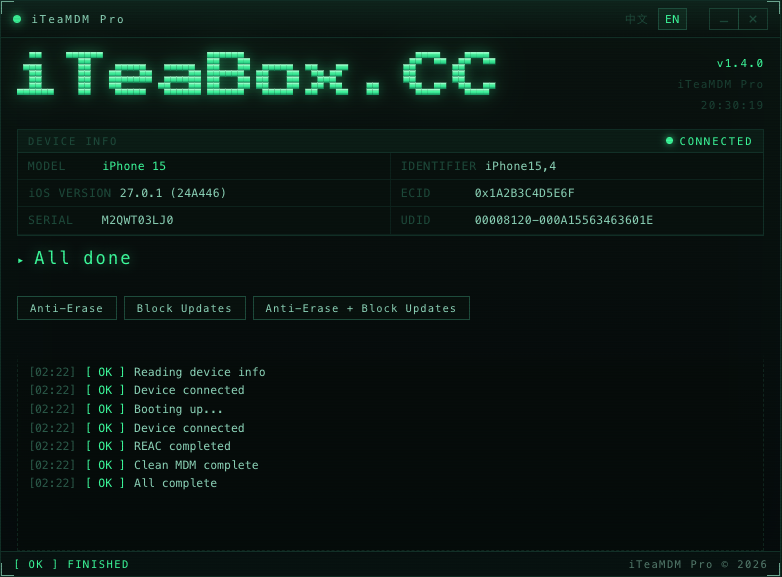
READY → RUNNING → FINISHED. It follows the
phone, not a timer.
Keeping it off
Two things bring the lock back: a wipe sent from the old console, and an update that arrives overnight. Both have a switch, and both are included.
Nothing wipes it.
Erase All Content and Settings is where most bypasses die. One command from the old console and the phone comes back blank and locked again. Anti-Erase turns the erase function off at the system level, so the command arrives and the device ignores it.
mobile.obliteration disabled · erase commands ignored
Stay on the version you tested.
An overnight OTA can re-enroll a supervised phone, or push it past 27.2 where this build no longer covers it. With updates off, the phone stays on the exact iOS version that worked on your bench.
softwareupdated · OTATaskingAgent stopped
Both come with every license and run from the three buttons on the main screen —
Anti-Erase · Block Updates · Both at once. Nothing extra to pay.
Customer wants a clean phone? Turn Anti-Erase off, let them erase, then run the tool again
on the same license. Free.
How a run goes
The app runs one fixed sequence. You can’t reorder it and you can’t skip a stage.
The phone must be erased or freshly flashed. USB cable, Windows machine.
It boots a ramdisk and pushes a 148 MB restore set. The bar counts megabytes, not guesses.
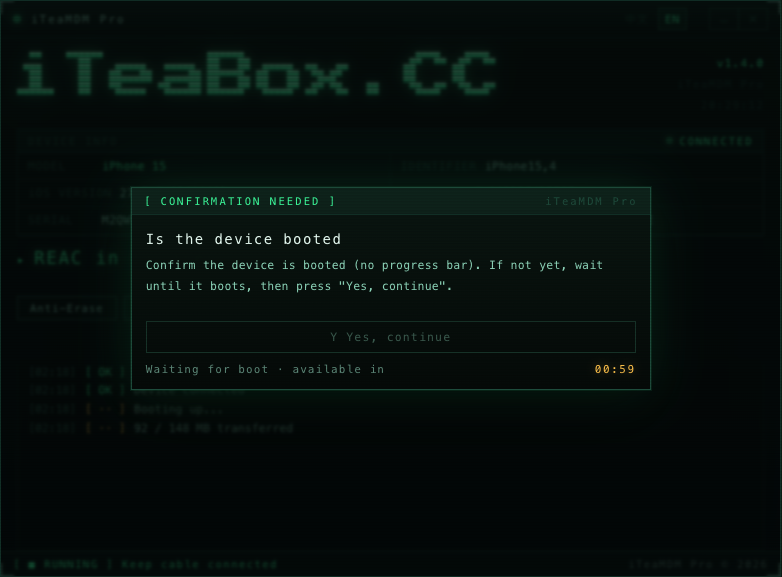
The phone restarts. Press Yes once it is up. REAC and clean MDM follow, then one more reboot.
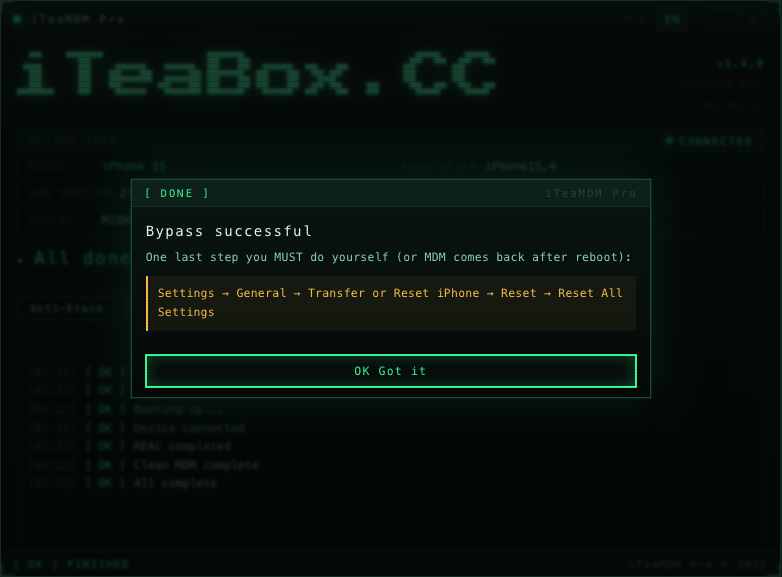
Settings → General → Transfer or Reset iPhone → Reset → Reset All Settings. Done.
First, make sure it’s the right lock
Apple renamed this screen a few times, so shops describe it differently and buyers get lost. If you see any of the four below, this tool is for it.
“Device Management
This iPhone is owned by: organization name”
“Remote Management
Remote management allows the administrator to manage this iPhone remotely.”
“This device is supervised”
Any iOS version“Device Enrollment” / “MDM Profile”
Any iOS versionOne that is not this: an Apple ID or iCloud prompt asking for an email and password. That is Activation Lock — a different lock, and this tool does not touch it.
Background
MDM means Mobile Device Management. Schools, carriers and companies buy iPhones in bulk, and the serial numbers get registered to an organisation before the phone is ever switched on.
That list lives on Apple’s side, in Apple Business Manager (the old name was DEP). The first time the phone sees Wi-Fi, it calls home, finds its own serial on the list, and locks itself into setup until an administrator signs in.
So there is nothing wrong with the hardware, and nothing to find on the device. The serial is flagged. That is why erasing it, restoring it, or swapping the SIM changes nothing — the flag is not on the phone.
Compatibility
The model doesn’t matter. The version does: 27.0 through 27.2. An old SE and a brand-new Pro Max go through the same run, as long as the phone is sitting on iOS 27.
Pricing
The usual price for an MDM bypass is $15 to $25, and most of those tools stop at iOS 26. This is $9.90, and it covers 27.0 through 27.2.
Enter the serial at checkout. The key is on the next page. No account to create — your email is how you find the order again.
Questions
No, and shops lose money confusing the two. An MDM lock shows a company or school name and an Enroll button. An iCloud Activation Lock shows an Apple ID and asks for a password. This tool removes the first one. It cannot touch the second.
Only if the phone is factory reset, or the old management server re-enrolls it. If that happens, run the tool again — same license, no charge. That is what “re-run free” means.
Inside 27.0 – 27.2, yes. The bypass survives a point update. Past 27.2 you are outside what this build covers, so most shops turn Block Updates on and leave the phone where it is. When we ship a build for a newer version, re-running is free.
Settings → General → About → iOS Version. If it isn’t 27.0 – 27.2, don’t buy a license yet. Mail us the number and we’ll tell you when a build lands for it. We would rather lose the $9.90 than take it and give you nothing.
Not while Anti-Erase is on. That is the point of it. If a customer asks for a wiped phone, switch Anti-Erase off, let the erase run, then run the tool again on the same license. Free.
The phone has to be wiped or flashed before the run. That is the job, not a side effect. Back up anything you care about first.
You get a failure dialog with one option that matters: retry this step. Keep the cable in. The log shows where it stopped, which is exactly what support needs to know.
One serial, one license. If a device is replaced under warranty, send both serials and we’ll move it once, free.
It is a repair tool. Use it on hardware you own or have written authorization to service — your own stock, a customer’s device with their say-so, a fleet you are decommissioning. Not on a phone still under someone else’s lease.